Install the Lightrun plugin in your Visual Studio IDE🔗
To debug using Lightrun from your IDE, you first need to install the Lightrun plugin in the IDE.
Supported IDEs and versions🔗
Lightrun currently supports IntelliJ IDEA, PyCharm, WebStorm, Visual Studio Code (VS Code), VS Code for the web (vscode.dev), Visual Studio, and code-server.
The Lightrun extension for Visual Studio is compatible with Visual Studio 2019 (16.10 and later), Visual Studio 2022 (up to 17.14), and Visual Studio 2026 (18.0.3) on Microsoft Windows. Visual Studio 2026 support is provided by the Visual Studio 2022 extension; no separate Visual Studio 2026 extension is required.
Contact us to schedule a Demo and learn more.
Choose your plugin installation method🔗
Lightrun supports the following installer types based on your deployment environment. When you access the Management Portal, the appropriate installer type for your specific deployment is displayed.
| Deployment environment | Installation method |
|---|---|
| SaaS users | Visual Studio Extension Marketplace or via the Marketplace in the IDE. |
| On-premise and Single-tenant users | Manual installation – Download a VSIX file from the Lightrun Management Portal. |
Identify your deployment environment🔗
| Deployment environment | How to identify | Recommended installation method |
|---|---|---|
| SaaS users | URL starts with https://app.lightrun.com | Install the Lightrun plugin from the VS Code Plugin Marketplace |
| On-premise / Single-tenant (no plugin repository) | URL is different and no custom plugin repository is available | Manual installation. |
Installation instructions🔗
[SaaS only]Install the Lightrun plugin from the Visual Studio Extensions Marketplace🔗
- Open you Visual Studio IDe and go to Extensions > Manage Extensions.
The Extension Manager pane opens. -
In the Extension Manager search box, type Lightrun.
-
Select the Lightrun extension compatible with your Visual Studio version: choose the 2019 extension for Visual Studio 2019, or the 2022 extension for Visual Studio 2022 and Visual Studio 2026. Then click Install.
-
After installation, go to the View tab on the menubar, scroll down and select Other Windows > Lightrun.
The Lightrun extension pane opens.
[On-premise and Single-tenant] Install plugin manually🔗
Lightrun provides a .vsix file that automatically installs the latest version of the Lightrun Visual extension in your IDE.
- Log in to the Lightrun Managment Portal.
-
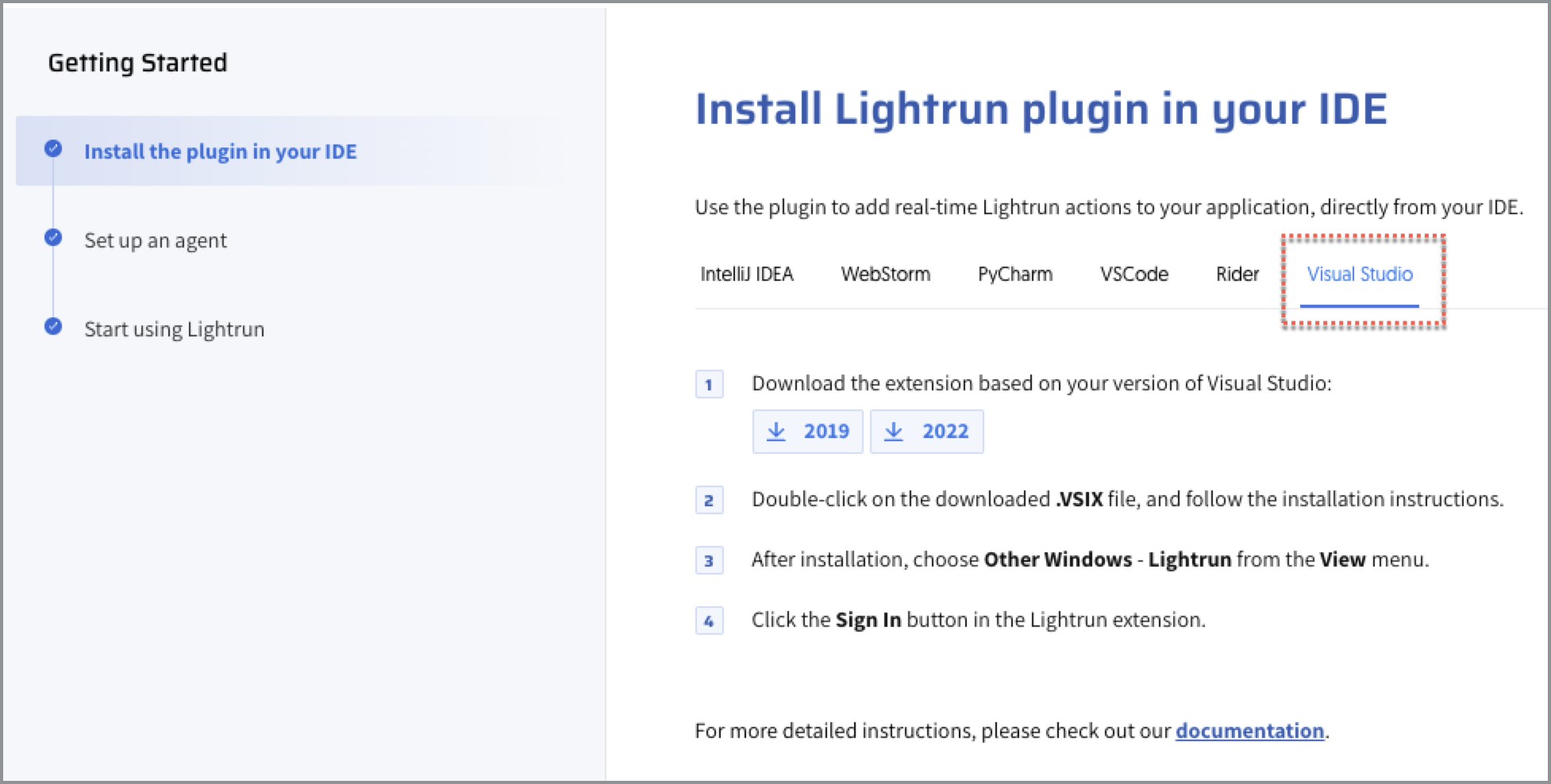
Navigate to the Getting Started wizard > Install the plugin in your IDE page. Download the 2019 VSIX file for Visual Studio 2019, or the 2022 VSIX file for Visual Studio 2022 and Visual Studio 2026.
-
Close your Visual Studio instance.
- Locate the downloaded VSIX file on your local computer and double-click to begin installation.
-
Open Visual Studio, then go to the View tab in the menubar, scroll down and select Other Windows > Lightrun.
The Lightrun extension pane opens.
Next steps🔗
After installing, authenticate the Lightrun plugin to start using it.