Manage personal access tokens🔗
Lightrun personal access tokens (PATs) provide a secure, reusable way to authenticate an MCP client as your Lightrun user without an interactive browser sign-in. A PAT preserves your current role-based permissions and Agent Pool access, so the MCP client can perform only the actions that you are authorized to perform.
Version availability
Personal access tokens are available starting with Lightrun version 1.93.1. They are supported for SaaS, Single-Tenant, and On-Premises deployments.
MCP authentication only
Personal access tokens currently authenticate Lightrun MCP connections only. They cannot authenticate the Lightrun Public API, IDE plugins, or other Lightrun APIs.
Before you begin🔗
Ensure that:
- Role-Based Access Control (RBAC) is enabled for your organization.
- Your role includes access to Lightrun MCP.
- A Company Admin has enabled MCP access in Service Configuration.
- You know your deployment's MCP endpoint URL. SaaS users connect to
https://app.lightrun.com/mcp. For Single-Tenant and On-Premises deployments, find the URL under Platform > Lightrun MCP in the Management Portal.
Personal access tokens and system API keys🔗
PATs and system API keys both use a Bearer token, but they represent different identities and use cases.
| Personal access token | System API key | |
|---|---|---|
| Identity | The user who generated the token | An organization-level system identity |
| Best suited for | A user's MCP client when browser-based OAuth is unavailable or impractical | Shared services, unattended automation, and Public API clients |
| Authorization | The user's current RBAC permissions and Agent Pool access | The key's API scopes and Agent Pool Access configuration |
| Supported authentication | Lightrun MCP only | Lightrun MCP, Public API, and supported integrations |
| Who can generate it | Any eligible user, for themselves | An administrator |
Changes to your role or Agent Pool assignments take effect immediately for existing PATs. A PAT never grants permissions beyond those assigned to its owner.
Generate a personal access token🔗
- Log in to the Lightrun Management Portal.
- Click Settings in the upper-right corner.
-
Under Security, select Personal Access Tokens.
The Personal Access Tokens page opens. Depending on your role, the table displays your tokens or all tokens in the organization.
-
Click Generate PAT.
The Generate PAT panel opens.
-
In Token label, enter a label that identifies the client or device that will use the token.
A label is optional. If you leave it blank, Lightrun assigns a label based on the token's last three characters.
-
Under Expiration period, select 30 days, 60 days, 90 days, or Custom. The default is 90 days.
For a custom expiration, select a date from tomorrow through two years from the current date.
-
Click Generate.
Lightrun generates the PAT and displays it once.
-
Copy the token and store it in a secure secret manager.
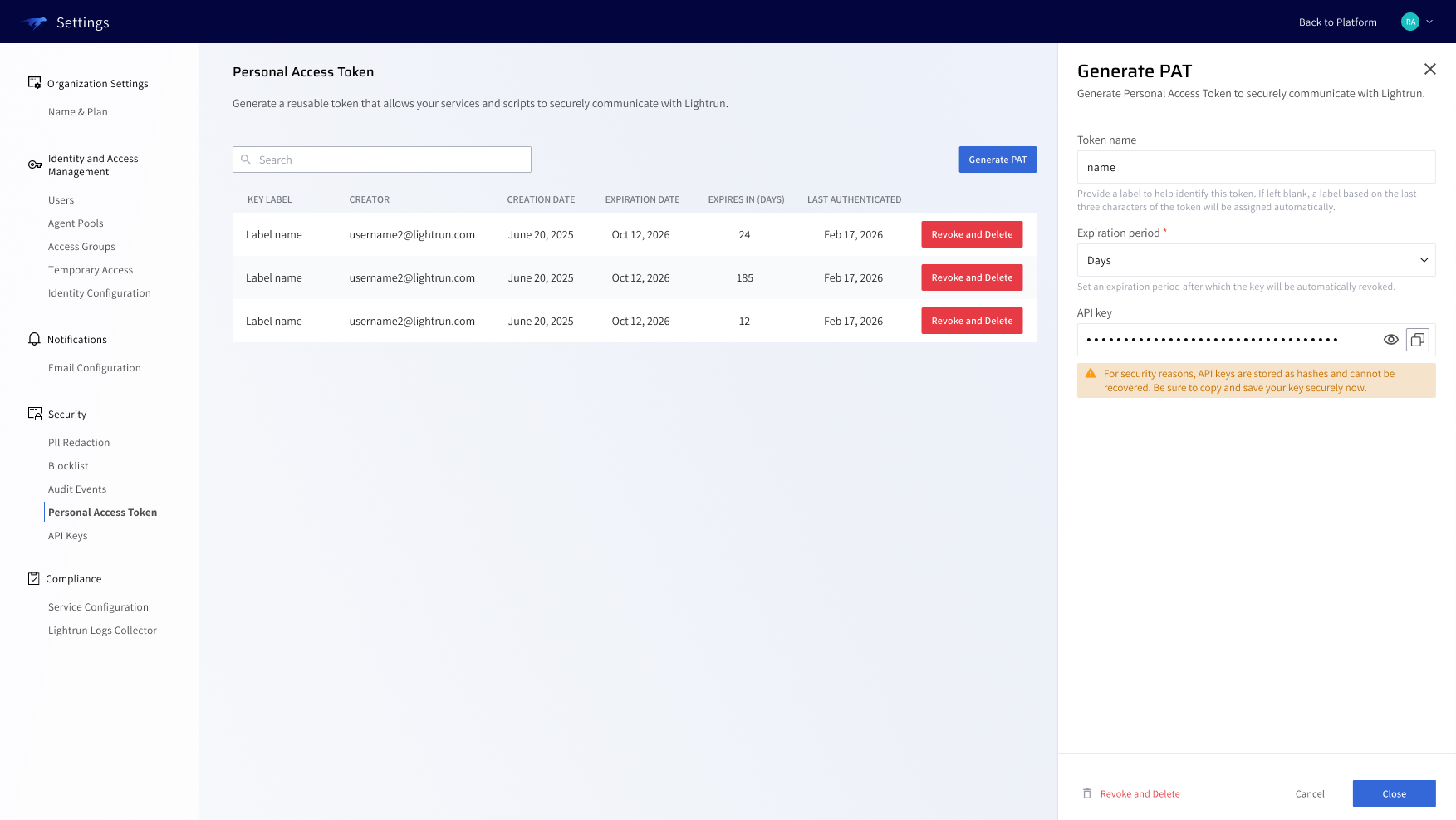
Copy the token before closing the panel
Lightrun stores only a hash of the PAT and cannot display the token again. If you lose it, revoke the token and generate a replacement. PATs begin with lr_pat_, which helps you identify them as Lightrun secrets.
Connect to Lightrun MCP with a PAT🔗
Configure your MCP client to send the PAT in the HTTP Authorization header:
Authorization: Bearer <PERSONAL_ACCESS_TOKEN>
For clients that use an mcp.json configuration file, add the MCP endpoint and header:
"Lightrun": {
  "url": "https://your-lightrun-server-domain/mcp",
  "headers": {
    "Authorization": "Bearer <PERSONAL_ACCESS_TOKEN>"
  }
}
Replace the URL when your deployment does not use Lightrun SaaS. Replace <PERSONAL_ACCESS_TOKEN> with the value that starts with lr_pat_.
Protect your PAT
Treat a PAT like a password. Do not commit it to source control or include it in logs, prompts, or support requests. Prefer a client-supported secret store or environment variable when available.
For client-specific connection instructions and an initial MCP test, see the Lightrun MCP quickstart.
Edit a token label🔗
You can change a token's label without changing its value or expiration date:
- On the Personal Access Tokens page, select the token.
- In the Token panel, update Token label.
- Click Save.
Revoke and delete a personal access token🔗
Revoke a PAT immediately when it is exposed, no longer required, or belongs to a client that should no longer connect.
- On the Personal Access Tokens page, click Revoke and Delete for the token.
-
In the confirmation dialog, click Revoke and delete.
Lightrun immediately rejects subsequent authentication attempts with the token. This action cannot be undone.
PAT management permissions🔗
Users can generate PATs only for themselves. Visibility and management of existing PATs depend on the user's role:
| Role | View PATs | Edit labels or revoke PATs |
|---|---|---|
| Company Admin | All PATs in the organization | All PATs in the organization |
| Company Viewer or Operations | All PATs in the organization | Own PATs only |
| Other roles | Own PATs only | Own PATs only |
Regardless of who can view or manage a PAT, MCP actions always use the current permissions and Agent Pool access of the token owner.